As an alternative to the standard PPTP VPN connection, SwissVPN now operates a service using OpenVPN. While PPTP is still the recommended protocol, OpenVPN may be able to pass through firewalls and proxy servers where PPTP cannot get through.
The OpenVPN configuration for SwissVPN only requires outbound TCP connections on port 1194 to be allowed (and a working DNS service, of course).
The following instructions explain how to install OpenVPN on iOS.
-
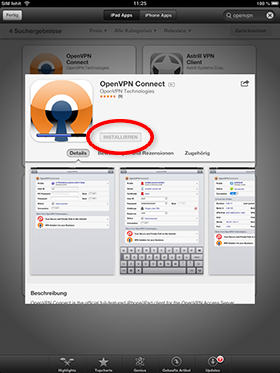
Install OpenVPN Connect from the App Store on your iPhone.
-
Download the CA certificate and the SwissVPN OpenVPN configuration file swissvpn.ovpn / swissvpn.conf to your Mac/PC.

-
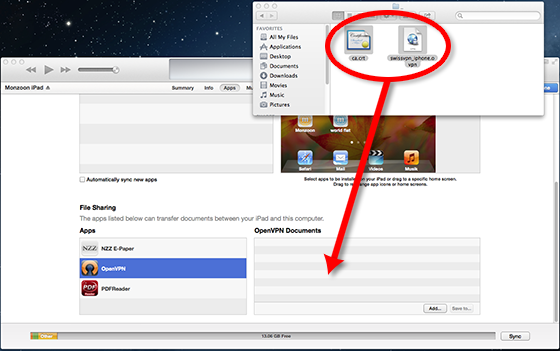
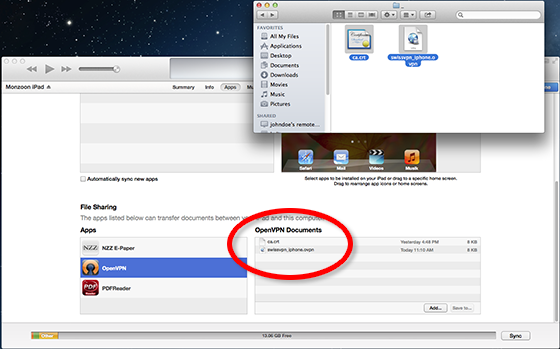
Connect your iPhone to your Mac/PC, open iTunes and first drop the ca.crt file and then the swissvpn.ovpn / swissvpn.conf file into the OpenVPN Documents window.
-
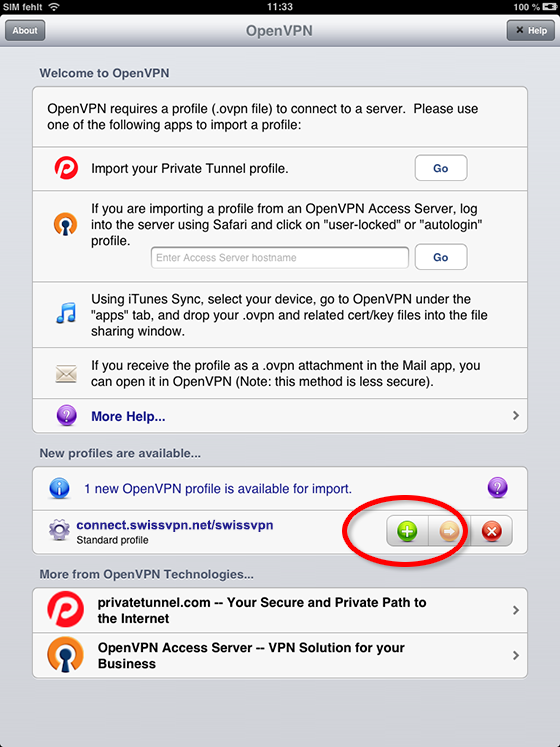
Launch the OpenVPN Connect app on your iPhone, select the green (+) button to add the OpenVPN configuration.
-
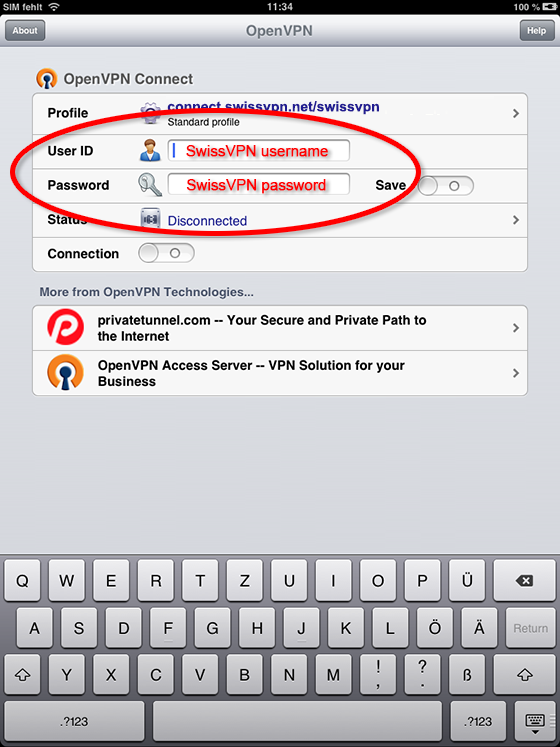
Enter your SwissVPN username and password, tap on Return, and confirm that you "allow OpenVPN to enable VPN connection" by tapping on yes.
-
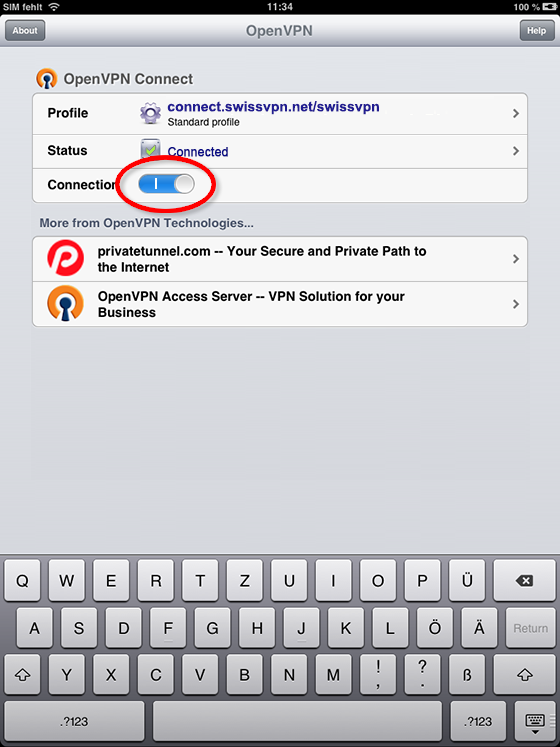
If the connection is successful, the status icon will show a green ok symbol and the status switch to connected.
-
You are now connected to SwissVPN!
To verify that all your connections to the Internet pass through your secure SwissVPN connection, simply visit www.swissvpn.net and check the indicator.
To disconnect tap on the blue "Connection" symbol.