As an alternative to the standard PPTP VPN connection, SwissVPN now operates a service using OpenVPN. While PPTP is still the recommended protocol, OpenVPN may be able to pass through firewalls and proxy servers where PPTP cannot get through.
The OpenVPN configuration for SwissVPN only requires outbound TCP connections on port 1194 to be allowed (and a working DNS service, of course).
The following instructions explain how to install OpenVPN on Android.
-
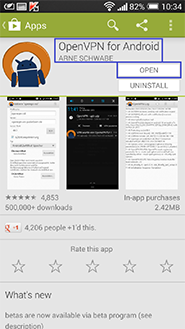
Go to the Google Play Store and download the free app OpenVPN for Android.

-
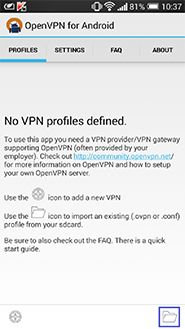
In the web browser of your Smartphone, enter this URL: www.swissvpn.net/downloads/swissvpn.ovpn, to automatically download the configuration-file to the device.

-
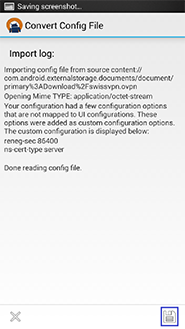
In the download-folder, choose the file "swissvpn.ovpn" / "swissvpn.conf". In the opening window "Convert Config File" tap on the diskette symbol at the bottom right to apply this configuration to the app.

-
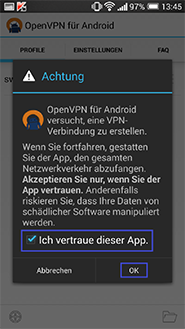
Tap on the freshly created configuration (called "swissvpn"). A window may pop up, telling you that the application is trying to move the entire network traffic through a VPN-tunnel. Activate the checkbox saying that you trust the app and tap on "OK".

-
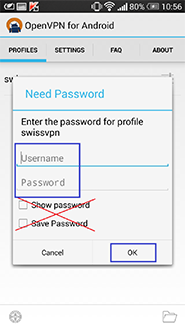
Login with the account you received by purchasing the SwissVPN service. Due to savety reasons, the option "Save Password" should NOT be checked! More information about this can be seen in the faq section of the app. Close the window by tapping on "OK". You are now connected with SwissVPN! If not, check if your internet connection is running.

-
You are now connected to SwissVPN!
To verify that all your connections to the Internet pass through your secure SwissVPN connection, simply visit www.swissvpn.net and check the indicator.
To disconnect OpenVPN slide your finger from the top of the screen downwards and choose either the option "VPN is activated by OpenVPN" or "OpenVPN – swissvpn". From here, tap on "Disconnect VPN". If you are still in the menu "OpenVPN Log", simply tap on the symbol on the top right and from the dropdown list choose "Disconnect VPN".